
Crimson Desert · Settings
PC graphics settings for smoother play
Build a repeatable graphics baseline, change one option at a time, and evaluate responsiveness before trying frame generation.
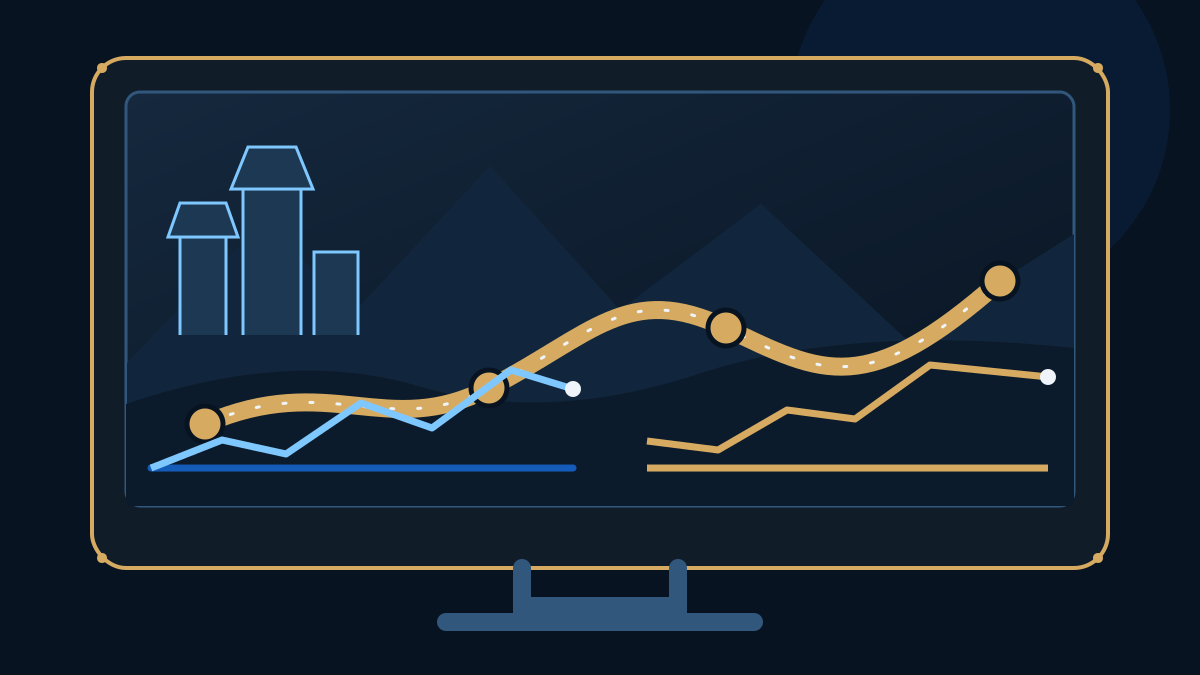
By Draconic Realms Gaming
A hardware-independent testing method; available options and results vary by PC and game version.
Saved and completed states stay on this device.
What you need first
- A PC capable of running the game
- Your intended output resolution
Quick answer
Choose your output resolution and turn frame generation off for the baseline. Run the same town-to-open-field route, change one setting at a time, and compare responsiveness, frame consistency, and visible detail. Your results are specific to your hardware, so repeat the check after resolution changes or game updates.
- Record a baseline
- Change one setting
- Repeat the same route
- Compare pacing and detail
- Keep or revert
Test the same route in the same conditions. Do not treat a smooth village as proof of demanding-area performance.
Source contextCrimson Desert PC Performance Review + DF Optimised Settings
Load the video only when you want to watch it.
DRG is independent fan content. Crimson Desert and its referenced imagery are the property of Pearl Abyss.
Establish a baseline you can repeat
Start at the output resolution you actually intend to use. Turn frame generation off so the first pass tells you how the game feels without an added frame-rate feature masking the underlying response.
Use the same route every time: begin in town, then travel out into an open field. A repeatable route gives you a more useful comparison than judging a setting during a different fight, weather pattern, or crowded scene.
- Set the chosen output resolution and disable frame generation for the baseline run.
- Follow your town-to-open-field route without changing other options along the way.
- Note how responsive movement and combat feel, how consistent the presentation is, and how much visible detail you want to preserve.
Change one setting at a time
A single-variable pass makes it much easier to identify which change helped and which change cost detail you care about. Repeat the same route after each adjustment instead of comparing unrelated scenes.
If the GPU is the limiting factor, test Quality-mode upscaling as one of those isolated changes. Compare it with your baseline for both image detail and the consistency of the experience; do not assume that a mode name guarantees the best result on your display.
Compare lighting, shadows, and ray tracing
Review the lighting, shadow, and ray-tracing options the game exposes on your system. These can alter both the look of a scene and the load on your hardware, so give each option its own comparison run.
Keep the setting that provides the balance you prefer between visible detail and consistent, responsive play. Avoid treating another player’s numbers as a promise: processor, graphics hardware, resolution, and the rest of your setup all matter.
Test frame generation separately
Only make frame generation a separate test after the base experience already feels comfortable. If movement or combat response is bothersome without it, address that baseline first.
Run the same route again and compare the generated-frame presentation with the responsive baseline you established. Keep the configuration only when the overall experience is an improvement for you, not simply because a counter is higher.
Recheck after resolution changes and updates
A new output resolution changes the workload and can change which settings make sense. Game updates can also alter the options available or the way an existing configuration behaves.
Return to the same baseline route after either change. Turn frame generation off again if you need a clean comparison, then rebuild the configuration one decision at a time.
Common blockers
- If two tests seem incomparable, return to the same resolution, starting point, and route before judging the setting.
- If Quality-mode upscaling looks too soft or loses detail you value, compare it again at your intended resolution rather than relying on a general recommendation.
- If frame generation does not feel better, go back to the base-response baseline and leave it off while you adjust other options.
- If an update changes the result, repeat the baseline instead of assuming the old configuration still applies.